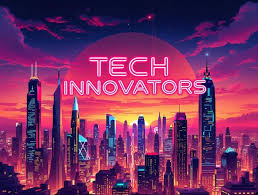
Create Stunning YouTube Channel Banners Fast Using Generative AI on Any Device
Why Your YouTube Banner Matters More Than You Think
Your YouTube channel banner is the first thing viewers see when they land on your page. It sets the tone, communicates your brand, and tells a potential subscriber within seconds whether your content is worth their time. The problem is that most creators either spend hours wrestling with design software or settle for a generic template that looks like everyone else’s. Generative AI has changed that equation entirely. Today, you can build a professional, eye-catching YouTube banner in minutes, from your phone, tablet, or desktop, without any design experience whatsoever.
What Generative AI Actually Does for Banner Design
Generative AI refers to artificial intelligence systems that can create original content, including images, layouts, color palettes, and text, based on your inputs. In the context of banner design, this means you describe what you want, the platform interprets your intent, and you receive a fully composed visual in seconds.
This is a significant leap from traditional template-based design. With older tools, you were choosing from a fixed library of pre-made layouts and swapping out placeholder text. With generative AI, the design is built around your specific vision. You might type something like “bold dark-themed gaming banner with neon accents and abstract shapes” and receive a unique result that you can then fine-tune.
Most modern AI banner tools also understand context. They know the required dimensions for YouTube channel art (2560 x 1440 pixels), they know which portions of the image appear across devices, and they apply design principles automatically so the result looks intentional rather than accidental.
Platforms That Use Generative AI for YouTube Banners
Several web-based platforms now integrate generative AI features specifically designed for social media and video platform graphics. The best ones share a few key traits: they work in your browser without requiring a download, they’re optimized for mobile as well as desktop, and they offer AI-assisted creation rather than just drag-and-drop templates.
Adobe Express is one of the strongest options in this space. It combines professional-grade design capabilities with AI-powered features that dramatically speed up the creation process. You can visit their dedicated YouTube banner tool to get started immediately from any browser, on any device. Adobe Express uses generative AI to suggest layouts, auto-apply brand colors, and even generate background imagery, making it particularly useful for creators who want polished results without a steep learning curve. Because it’s web-based, it works equally well on a smartphone, a tablet, or a laptop, and your projects sync across all your devices.
Other platforms in the market also offer AI-assisted banner creation, though they vary in the depth of their AI integration and the quality of their output. When evaluating any tool, look specifically for features like text-to-image generation, AI background removal, smart cropping for different screen sizes, and brand kit integration. These features separate truly generative tools from those that just call themselves AI-powered as a marketing term.
Tips for Creating Great YouTube Channel Banners with AI Tools
1. Start with a Clear Creative Brief Before You Open Any Tool
Before you prompt any AI system, spend two minutes writing down the core elements of your brand. What colors represent you? What mood should the banner convey? What text, if any, needs to appear? Having these details ready means you can give the AI a precise, descriptive prompt instead of something vague. The more specific your input, the more accurate and useful the AI output will be.
A good brief might look like this: “Outdoor travel channel, earthy green and terracotta tones, mountain imagery, channel name in bold sans-serif, adventurous but approachable.” That single sentence gives an AI tool enough to generate something genuinely aligned with your brand.
2. Use the Correct Dimensions and Safe Zone from the Start
YouTube recommends a banner size of 2560 x 1440 pixels, but the “safe zone,” meaning the area that appears on all devices without being cropped, is only 1546 x 423 pixels in the center. Any text or logo that falls outside that zone risks being cut off on mobile screens or TVs.
The best AI design tools handle this automatically by marking safe zones in the editor. If a tool doesn’t do this, look for one that does. Working within the correct constraints from the beginning saves you from having to redo your design after you see how it looks on different devices.
3. Write Descriptive Prompts That Include Mood, Color, and Style
When using text-to-image or AI background generation features, the quality of your prompt directly affects the quality of your result. Most creators write prompts that are too short. Instead of “tech background,” try “futuristic circuit board pattern with deep navy and electric blue, subtle glow effects, minimalist composition.”
You can also reference artistic styles or visual moods in your prompts. Words like “cinematic,” “editorial,” “flat design,” “retro,” “neon noir,” or “high contrast” are all useful descriptors that AI image tools understand and respond to meaningfully.
4. Leverage AI Brand Kit Features to Stay Consistent
Many AI-powered design platforms let you upload your brand colors, fonts, and logo, then apply them automatically across any design you create. This is particularly valuable for YouTube creators because your channel banner should visually match your thumbnails, your community posts, and your social media profiles.
Once you set up your brand kit, the AI can apply your visual identity to any template or AI-generated layout, meaning you get consistency without having to manually set colors and fonts every time. This feature alone can cut your banner creation time in half.
5. Try Multiple AI-Generated Variations Before Committing
One of the biggest advantages of generative AI tools is that they can produce multiple variations of a design almost instantly. Don’t settle for the first result. Generate three to five versions using slightly different prompts or by adjusting the AI’s style parameters, then compare them side by side.
You may find that one version has the right layout but the wrong color temperature, while another has great colors but the wrong energy. Most platforms let you merge elements across versions or use one as a starting point for manual refinements. Treat the AI output as a first draft, not a final product.
6. Optimize Your Banner for Mobile Viewing Specifically
More than 70 percent of YouTube views happen on mobile devices, and the YouTube channel banner displays differently on phones than it does on desktops. On mobile, only the central strip of the banner is visible, which means mobile users will never see the edges of your design unless they visit on desktop.
Test your banner by previewing it at mobile dimensions before publishing. Most modern AI design tools include a device preview feature that simulates how your design appears on a phone, tablet, desktop, and TV simultaneously. Use this view before you finalize anything.
7. Use AI to Generate Background Imagery That Doesn’t Require a Photo Shoot
If you don’t have high-quality photography to use in your banner, generative AI image tools can create unique, original backgrounds that would otherwise require a professional shoot. A travel creator can generate sweeping landscape imagery. A beauty creator can create an elegant, abstract gradient backdrop. A gaming creator can generate an immersive sci-fi scene.
Because these backgrounds are AI-generated, they’re also completely original, which means you don’t have to worry about licensing issues or attribution requirements that come with stock photography. The imagery belongs to you.
8. Keep Text Minimal and Make Sure It’s Legible at Small Sizes
Your channel name might be the most important text element on your banner, but it has to be readable even when your banner appears at a small size on a mobile screen. As a general rule, use no more than two to three lines of text, choose a font weight that’s bold enough to stand out against your background, and ensure sufficient color contrast between your text and background.
AI tools with accessibility features will sometimes flag low-contrast text combinations automatically. Pay attention to these warnings. A beautifully designed banner that no one can read defeats its own purpose.
9. Refresh Your Banner Seasonally or Around Major Milestones
A static banner that never changes can make a channel feel inactive or abandoned. Use AI tools to quickly spin up seasonal variations or milestone banners, such as a design that celebrates reaching 10,000 subscribers or one that reflects a new content focus.
Because AI tools make banner creation so fast, updating your banner for the holidays, a new series launch, or an anniversary is no longer a hours-long project. You can design, test, and publish a new banner in under thirty minutes, keeping your channel page feeling fresh and current.
10. Use Your Banner to Communicate What Your Channel Is About
Your banner is valuable real estate for communicating your channel’s value proposition. Beyond your name, consider including a short tagline, your upload schedule, or the categories of content you cover. These details help first-time visitors quickly understand what they’ll get by subscribing.
AI tools can help you experiment with layout variations that incorporate this kind of information without making the banner feel cluttered. Use the AI to suggest compositions that balance your imagery, your text, and your brand elements in a way that feels spacious and intentional.
Step-by-Step Workflow for Building Your Banner with an AI Tool
Following a consistent workflow helps you get better results faster, especially if you’re creating banners regularly for an active channel.
- Step 1: Define your brand elements (colors, fonts, logo, tone)
- Step 2: Write a specific creative brief or prompt
- Step 3: Open a web-based AI design tool on whichever device you’re using
- Step 4: Use text-to-image or template AI features to generate an initial layout
- Step 5: Apply your brand kit if the tool supports it
- Step 6: Generate two to four variations and compare them
- Step 7: Refine the best version by adjusting text, colors, or imagery
- Step 8: Preview your banner in the mobile, desktop, and TV safe zone views
- Step 9: Export at 2560 x 1440 pixels and upload to YouTube
This entire process, using a tool with strong AI features, should take between fifteen and forty-five minutes for most creators, including time to experiment with variations.
What to Look for in an AI YouTube Banner Tool
Not every platform that claims to use AI is offering the same depth of functionality. When evaluating your options, prioritize the following capabilities.
True generative features: The tool should be able to generate original imagery or design compositions from a text prompt, not just apply filters to stock photos or rearrange template elements.
Cross-device functionality: Since creators work from phones, tablets, and desktops at different times, the tool needs to be fully functional on mobile browsers, not just desktop.
YouTube-specific templates and dimensions: Tools that are built with YouTube in mind will automatically configure the correct banner dimensions and highlight the safe zone for you.
Export quality: Your finished banner should export at the full 2560 x 1440 resolution. Some free-tier tools compress or downscale exports, which will make your banner look blurry on large screens.
Speed: Generative AI features should produce usable results in seconds, not minutes. If a tool’s generation is slow, that bottleneck adds up quickly when you’re iterating on multiple versions.
Frequently Asked Questions
What dimensions should a YouTube channel banner be, and does the AI tool handle that automatically?
YouTube’s official recommended banner size is 2560 x 1440 pixels, with a minimum file size of 6MB. The important nuance is the “safe zone,” which is the 1546 x 423 pixel centered area that displays on all device types without being cropped. Most well-designed AI banner tools automatically configure these dimensions when you choose a YouTube banner template, and they visually overlay the safe zone in the editor so you can see exactly what will be visible across all devices. If a tool doesn’t show you the safe zone, you can use YouTube’s own channel art template as a reference guide, which is available through YouTube’s Help Center and can be downloaded to use as a layout overlay in any editor.
Can I really create a professional-looking YouTube banner on my phone?
Absolutely. Web-based AI design tools are built to run in mobile browsers, and many of them have touch-optimized interfaces that make the design process comfortable on smaller screens. The AI features, including text-to-image generation, background removal, and layout suggestions, work the same way regardless of device. The key is choosing a platform that has genuinely invested in its mobile experience rather than one where mobile is an afterthought. If you’re unsure, look for platforms that offer a preview in the browser before you create an account, so you can assess the mobile interface before committing.
Do AI-generated backgrounds in banner tools come with licensing concerns?
When you generate an image using an AI tool integrated into a design platform, the output is typically covered by that platform’s terms of service regarding user-generated content. In most cases, the platform grants you the rights to use and publish AI-generated images for commercial purposes, including monetized YouTube channels. However, you should always read the specific licensing terms of whatever platform you’re using. Adobe Express, for example, provides commercially safe content through its generative AI features. If you’re using a lesser-known tool, check whether it sources its training data from licensed content and whether its output is cleared for commercial use. When in doubt, stick with established platforms that have published clear intellectual property policies.
How often should I update my YouTube channel banner?
There’s no hard rule, but updating your banner two to four times per year is a reasonable cadence for most active creators. Practical trigger points for an update include launching a new content series, reaching a subscriber milestone, rebranding your channel, or aligning with a seasonal moment that’s relevant to your niche. Because AI tools have made the creation process so fast, there’s genuinely less reason to leave a banner unchanged for years. A fresh banner signals to returning visitors that the channel is active and evolving, which can positively influence subscribe decisions. For creators running promotional campaigns, you might update your banner even more frequently to reflect specific campaigns or limited-time content drops. A tool like TubeBuddy can help you track how channel page visits fluctuate around banner changes, giving you data to evaluate whether refreshes affect subscriber conversion.
What text should I include on my YouTube channel banner?
At minimum, most creators include their channel name. Beyond that, the most effective additions are a short tagline that communicates the value of the channel, and an upload schedule such as “New videos every Tuesday.” Avoid overloading the banner with text. Banner real estate is limited, especially in the mobile safe zone, and crowded banners tend to look unprofessional. Keep your text hierarchy simple: one primary element (your channel name) and one or two secondary elements (tagline, schedule, or niche descriptor). Use a font that reflects your brand personality but is still highly legible at small sizes. AI design tools can help you preview how your text will appear at different scales, which makes it easier to make the right call before you publish.
Conclusion
Generative AI has fundamentally lowered the barrier to creating professional YouTube channel banners. What once required a graphic designer or hours of self-taught software skills can now be accomplished in under an hour, from any device, by anyone with a clear sense of their brand. The tools available today combine speed and creative power in a way that wasn’t possible just a few years ago.
The key to getting the most out of these tools is knowing how to work with them rather than against them. Use specific prompts, leverage brand kit features for consistency, generate multiple variations before choosing, and always test your banner in the mobile safe zone view before publishing. Whether you’re just launching your channel or refreshing an existing one, generative AI banner tools give you the ability to show up with a polished, intentional visual identity that reflects the quality of the content behind it.